 Yatri Studio
Reel Recreate
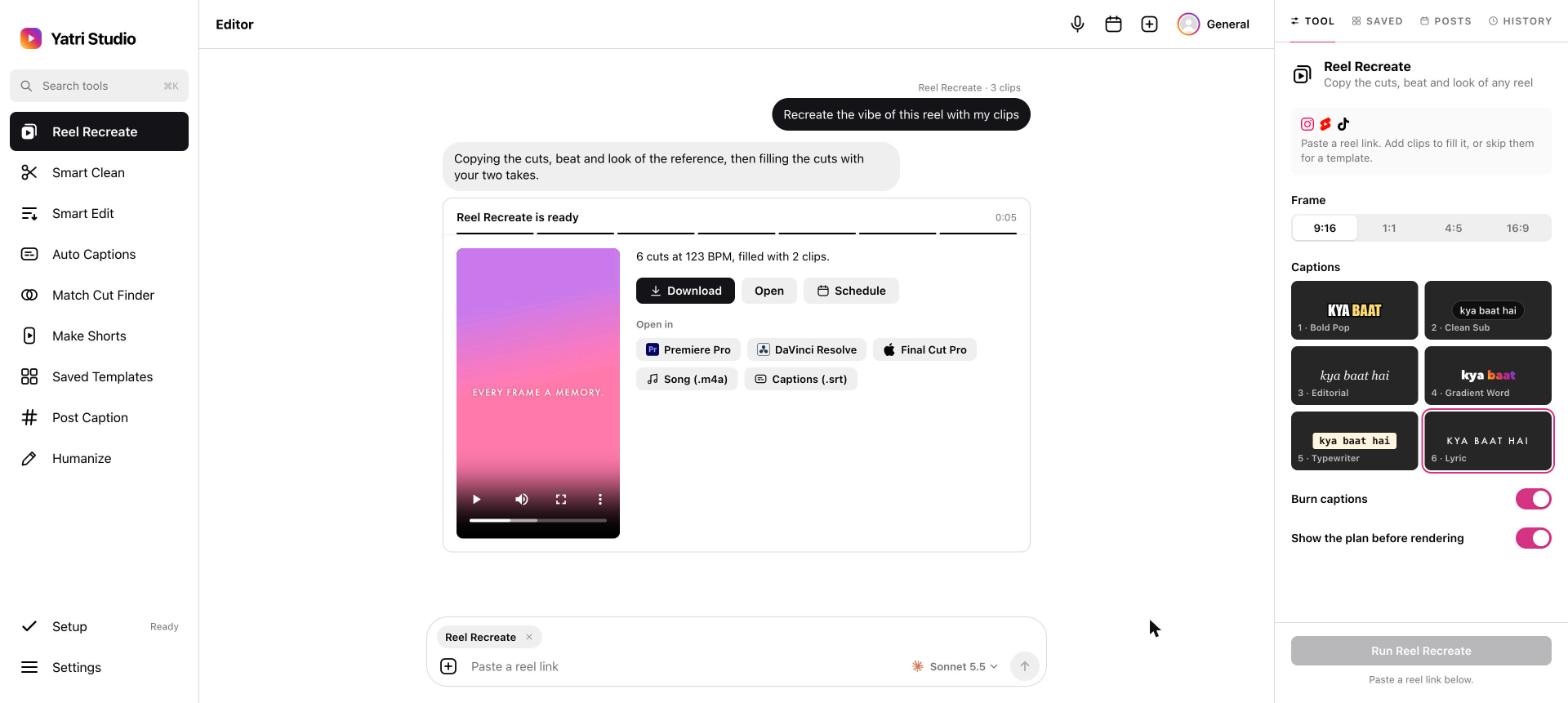
Paste a reel link. Yatri Studio copies its cuts, beat, colour and captions, then fills it with your clips.
Found a reel whose edit you love? Paste the link. Yatri Studio downloads it, works out exactly where every cut lands, finds the beat, measures the colour, and rebuilds the same edit with your footage. You also get the song as an audio file and a timeline you can open in Premiere Pro, DaVinci Resolve or Final Cut Pro.
Try it
- Select Reel Recreate, or type
/recreate. - Paste the reel link into the message box. Instagram, YouTube Shorts and TikTok links all work.
- Add your own clips. Two to five clips is ideal. Leave them out if you only want a template.
- Choose a caption style on the right. Lyric suits music reels, Bold Pop suits talking reels.
- Press Run. You get a plan first (see below). Nothing renders yet.
- Check the plan, then press Generate video.
How it reads the reference
Before planning, Yatri Studio shows key frames of the reference to the vision model and writes an edit breakdown: the overall style, and every effect with whether it can recreate it.
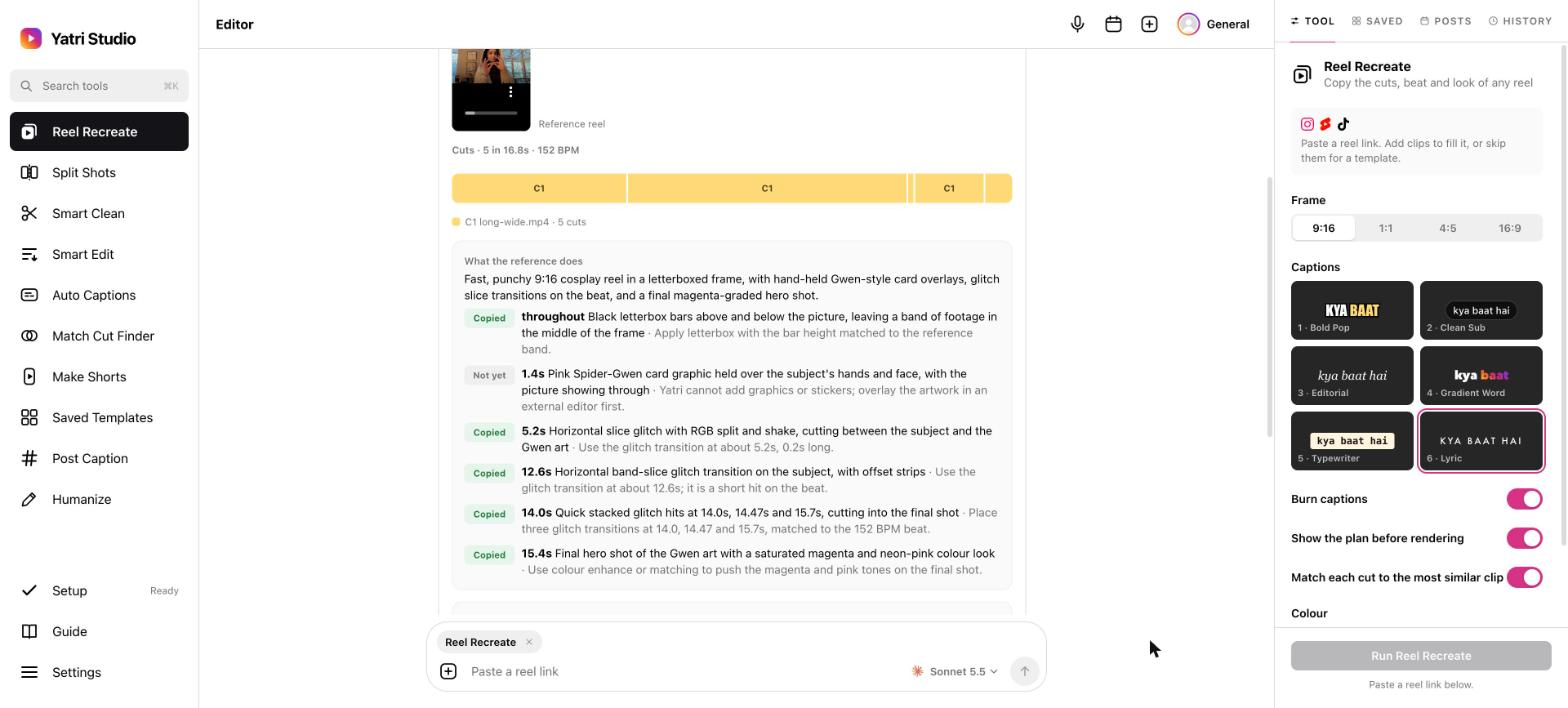
- Copied: exact cuts, beat, letterbox, glitch transitions (colour split, grain and shake) and white flashes are replayed at the same moments in your video. Glitches the model sees but the frame analysis missed are added too.
- Partly: graphic overlays such as the pink comic card in this reel are part of the creator's own footage and can't be lifted out. Yatri adds its own comic card (pink halftone panel with lightning) sweeping across your video at the same moments.
- Not yet: background replacement and speed ramps. Add them on top of the exported project.
Text
Copy on-screen text from the reference (on by default) finds the text the reference shows, with Apple's text recognition, and puts the same words at the same place and time in your video. It even handles sideways or handwritten text.
It also copies how the text looks. About 680 font families are drawn with the same words and compared against the reference: the fonts on your Mac plus a library of 280 free Google Fonts that reels use a lot (Parisienne, Great Vibes, Pacifico, Montserrat, Bebas Neue, Playfair Display and more). The closest one wins, along with its weight, slant, colour and outline. When footage moves behind the text, several frames are stacked so the background doesn't confuse the match.
The font library downloads once with node scripts/fonts.mjs and lives in .studio/fonts. Instagram and CapCut also use a few fonts of their own. If a reel uses one of those, you get the closest match. To get it exact, put the font file (.ttf or .otf) in .studio/fonts and run Reel Recreate again. New fonts are picked up without a restart.
Song lyrics are not added unless you turn on Add lyric / speech captions, because most reels don't show their lyrics.
The plan comes first
With Show the plan before rendering on (the default), Yatri Studio reads the reference and shows you the edit before it makes anything.
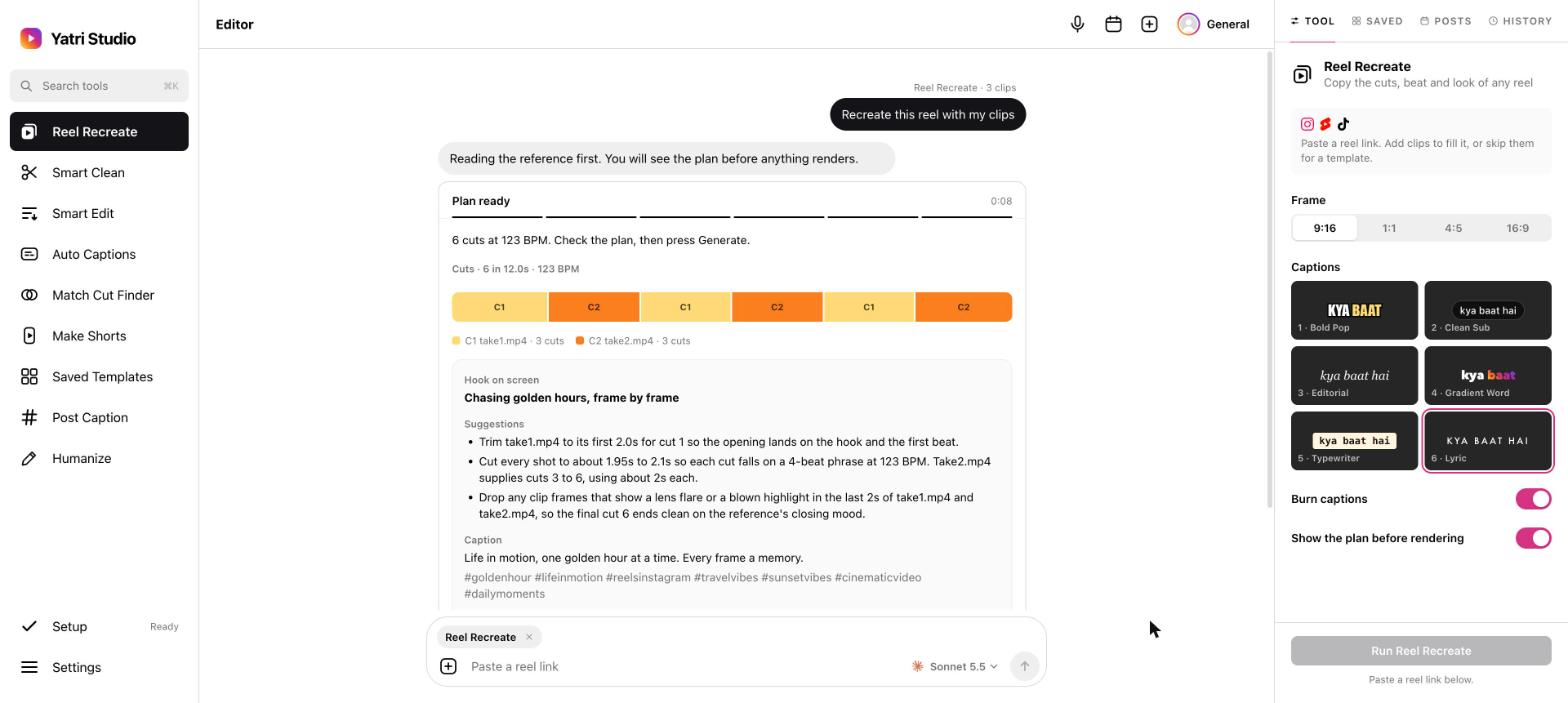
- The cut strip shows every cut at its real length. The colour tells you which of your clips fills it (C1, C2 and so on).
- Hook on screen is a short line to put on screen in the first two seconds.
- Suggestions are three concrete tips for this edit, such as which clip to open with or which cut needs your strongest shot.
- Caption and hashtags are ready to paste, and you get a best time to post.
Change the plan before you render
- Swap a clip: tap any cut in the strip to give it your next clip. Changed cuts get a dark ring.
- Rewrite the text: every piece of on-screen text copied from the reference is listed under On-screen text. Edit it, or clear it to leave it out.
- The button changes to Generate with my changes, and the render follows your edits exactly.
The plan uses one small request to the fast model. Rendering happens on your Mac and uses no model credits, so you only pay when you decide the plan is right. The model also picks which clip should open the reel, and the plan uses that choice.
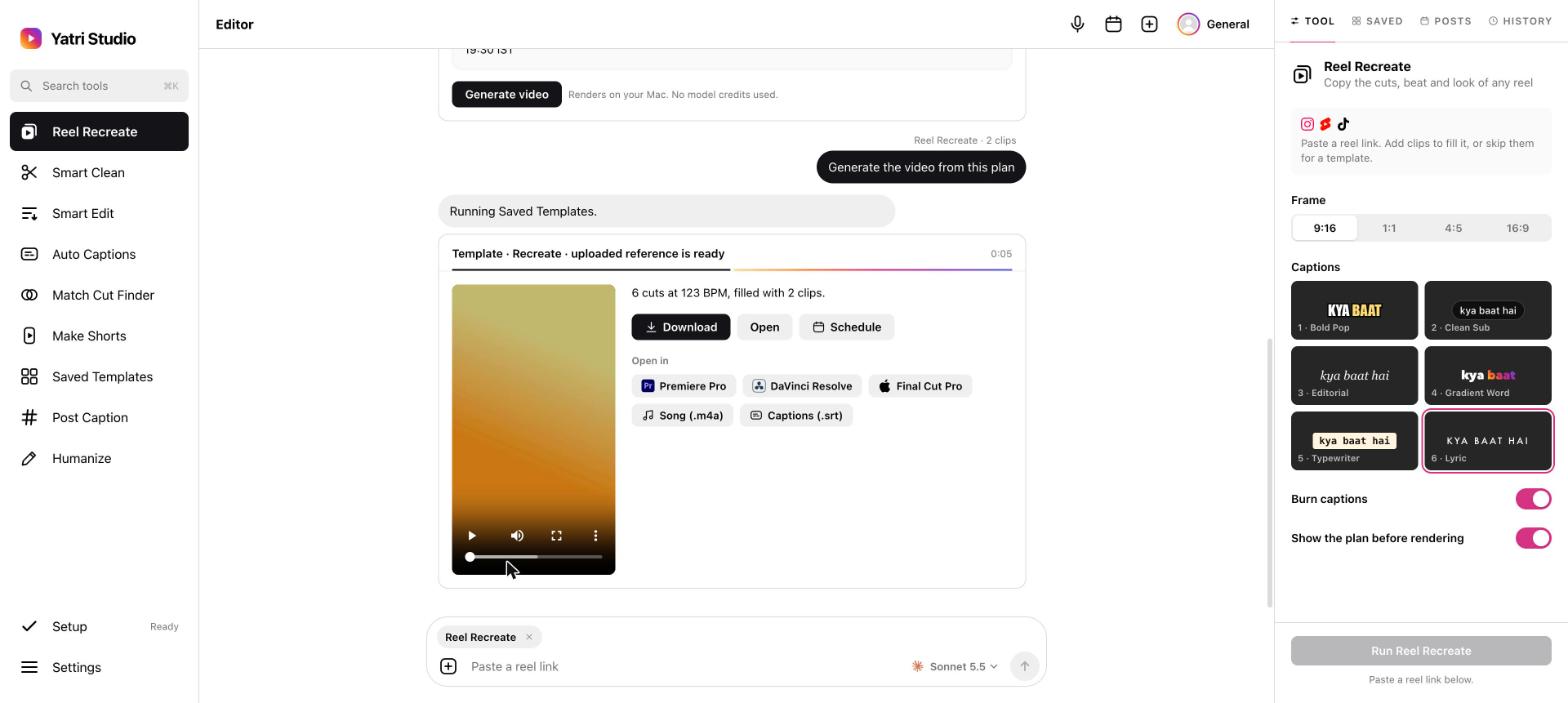
Turn the toggle off to skip the plan and render straight away.
What happens
| Step | What it does |
|---|---|
| Downloading video | Saves the reel with yt-dlp |
| Extracting audio | Pulls the soundtrack out |
| Detecting speech | Transcribes any lyrics or voice, so they can become captions |
| Making cuts | Finds every hard cut by comparing each frame with the one before |
| Matching beats | Finds the tempo and beat grid. Cuts keep the reference's exact frames, because it was already cut to its music |
| Adding effects | Finds the person in each of your clips and crops around them, sets the colour (see below), and replays the reference's glitch transitions and flashes at the same moments |
| Building captions | Renders captions, the final video, the song and the editor timelines |
A real reel
This is a 9.4-second beach reel that cuts between the ocean and the creator every 6 frames (0.2 seconds). Yatri Studio found all 47 shots at their exact frames and copied its timing, beat and colour.
Footage: @nishthamenariaaa, used with permission.
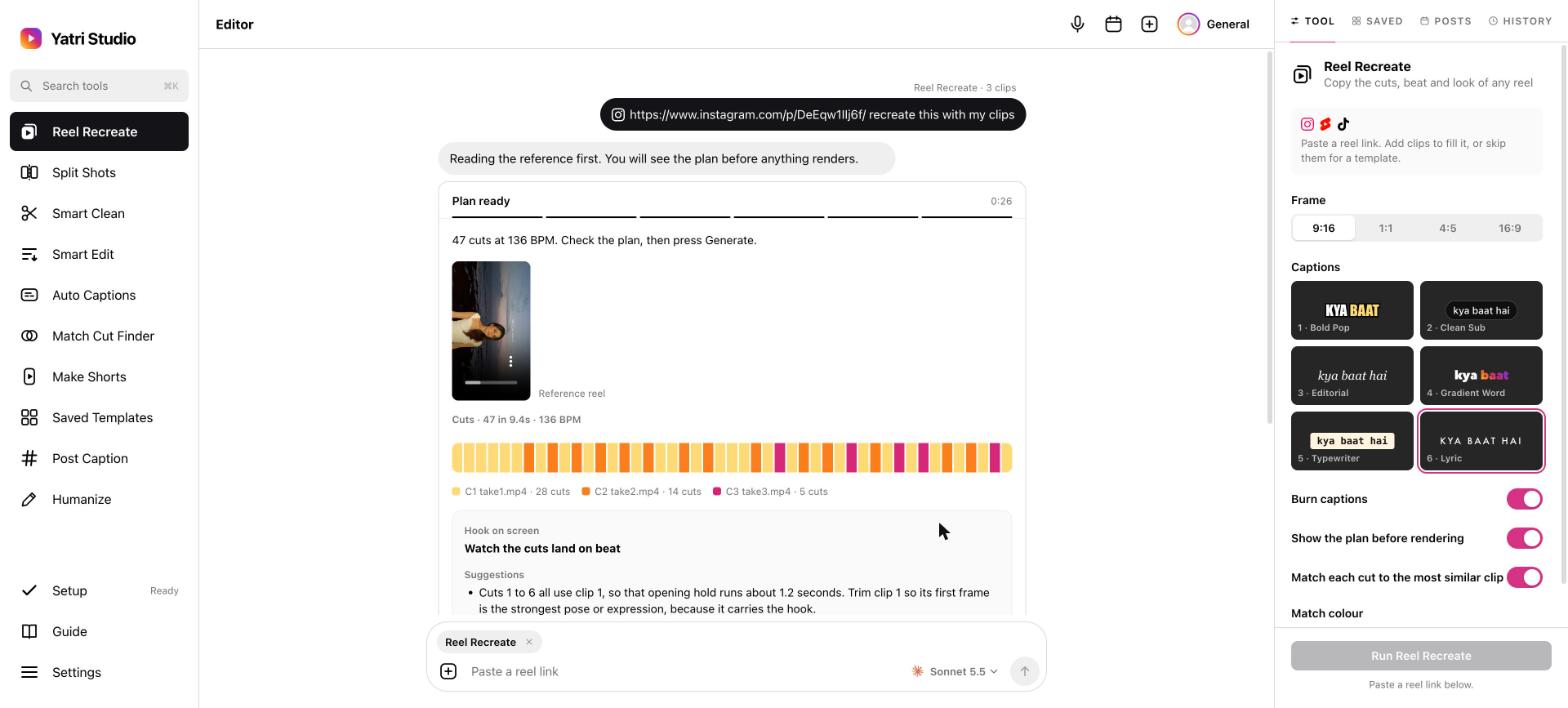
The reel is filmed sideways on purpose (a tilt-your-phone trend), and the tools handle it like any other footage.
On another reel (a fast Bollywood-style intro, 13.8 seconds long) the cuts come every 4 frames, and it found all 103 of them.
Rebuild a reel from its own shots
This is the strongest test of the edit engine. We took a reel, cut it into its shots with Split Shots, shuffled them (3, 1, 4, 2) and gave them to Reel Recreate with the original link. Nothing else.
With Match each cut to the most similar clip on (the default), Yatri Studio compares every cut in the reference with every moment in your clips, by layout and colour, and picks the closest. It put all 4 shots back in their original places, at the original lengths, inside the same black-bar frame. It also noticed the reference has black bars and kept them. The output keeps the reference's 60 fps, and its brightness and colour measure within about 4% of the original. When your clips already match the reference look, Yatri Studio leaves their colour untouched.
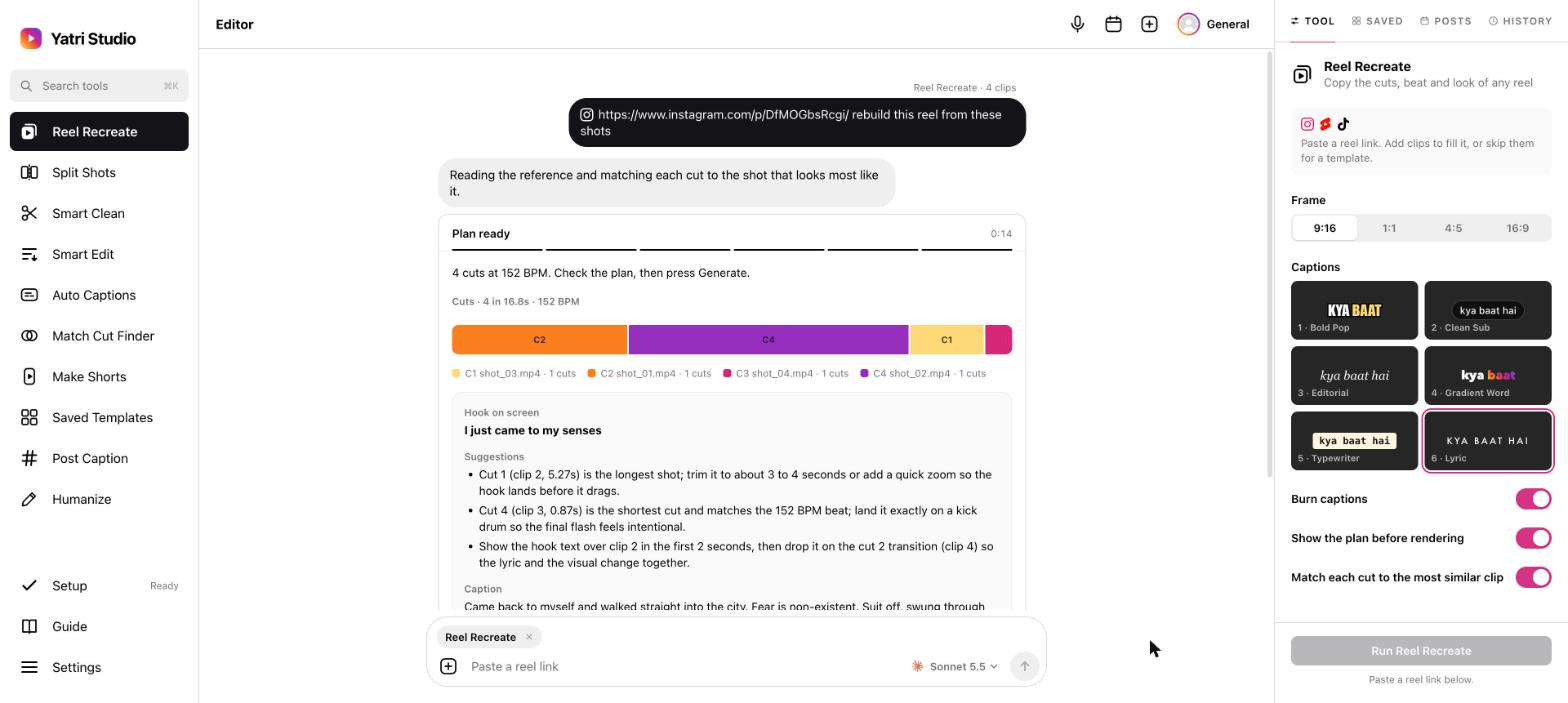
Footage: @shreyapabalkar, used with permission.
With look matching off, clips are simply taken in turn, so the transformation lands in the wrong place. Leave it on whenever your clips resemble the reference's shots: same location, same framing, or the same outfit change.
The exported Premiere, Resolve and Final Cut timelines list each shot with its exact in and out points, so you can check or adjust every cut.
Rebuilding the beach reel too
The same test on the 47-shot beach reel: split into clean shots, shuffled, rebuilt. All 47 shots came back in their original order at the exact cut frames.
Footage: @nishthamenariaaa, used with permission.
The rebuild uses the clean footage, so the creator's text overlay is gone. The whole project (footage, song and timelines) downloads as one zip. See Export.
Crop, colour and quality
- Smart crop. Apple's Vision framework runs on your Mac and finds faces first, then people, then the most eye-catching object. Each shot is cropped around what it finds, so the person stays in frame instead of the crop cutting from the middle. Here the same vertical reel is cropped to square and to widescreen:
Footage: @nishthamenariaaa, used with permission.
Colour. Pick how your footage is coloured:
Colour What it does Enhance mine (default) Makes your clips look their best from their own light: exposure, contrast, white balance and a gentle saturation lift. Ignores the reference's colour Light match Moves halfway toward the reference's look and never darkens much Full match Matches the reference's brightness, contrast, saturation and white balance as closely as it can Off Leaves your colour untouched Colour is measured only inside the picture, never the black bars.
Export quality. 1080 x 1920, 30 fps, H.264 High profile at high quality, AAC audio at 48 kHz and 192 kbps, web-optimised. Instagram re-encodes everything you upload, and a clean, high-bitrate file loses the least when it does.
No clips? You get a template
Run it with only a link and every cut becomes a numbered card that shows how long the shot should be. Open the Premiere or Resolve timeline and replace each card with your own shot. The music, beat markers and captions are already in place.
What you download
- The video, ready to post.
- Song (.m4a), the reel's soundtrack on its own. Useful for CapCut or your phone's editor.
- Premiere Pro, DaVinci Resolve, Final Cut Pro timelines with your shots, the song on its own track, and a marker at every cut and beat.
- Captions (.srt), if the reel had lyrics or speech.
Every recreate is also saved under Saved, so you can use the same edit again with new clips. See Saved templates.
Get the best result
- Give it at least as much footage as the reel is long. Clips shorter than a cut are skipped in favour of longer ones.
- Shoot in the same orientation as the reference. A 9:16 reel recreated from landscape footage gets cropped.
- Pick references with clear, hard cuts. Slow crossfades are harder to detect.
- Use the reel's song only where you have the right to. If you post the result on Instagram, add the original sound from Instagram's own music picker so it's licensed.