 Yatri Studio
Auto Captions
Word-timed captions in six styles, burned into your video. Hindi speech can come out as Roman Hinglish.
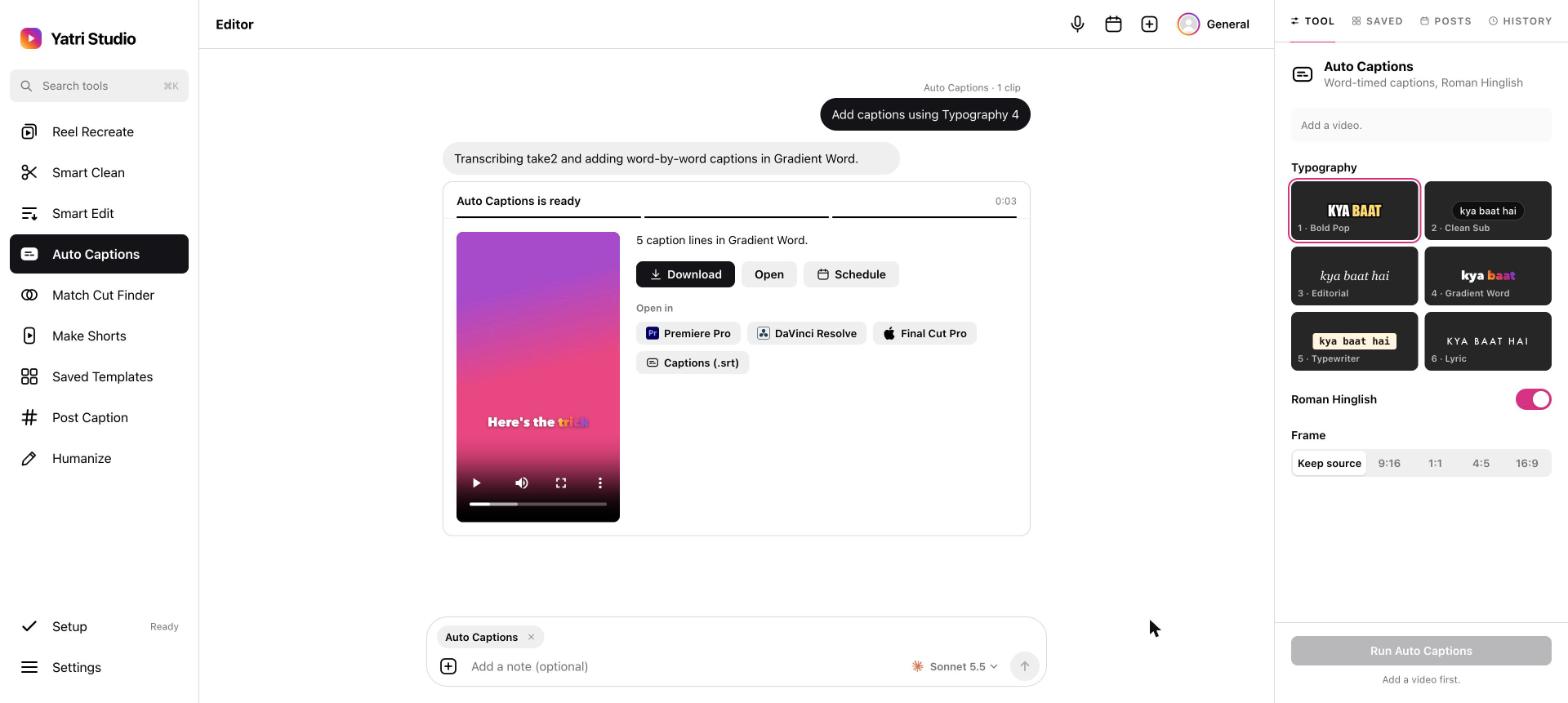
Auto Captions transcribes your video on your Mac, times every word, and burns the captions in. Two of the styles light up each word as it's spoken.
Try it
- Add one video.
- Type
/captions, or ask "add captions using typography 4". - Pick a style on the right.
- Press Run.
Pick any font
Caption font sets the typeface for any of the six styles. The style keeps its size, colours and animation; only the letters change.
- Click the font box under Typography.
- Browse Popular, filter by Script, Display, Sans, Serif or Mono, or search by name. About 430 fonts are available: your Mac's own plus the free reel font library.
- Pick a font, then a weight such as Bold or Black if the font has more than one.
Every preview, including the six style tiles, is drawn by the same engine that renders your video, so what you see is exactly what you get. Script fonts stay in normal case even in all-caps styles, because capitals in a script face are hard to read.
To use the same font every time, set it in your profile. See Profiles.
The six styles
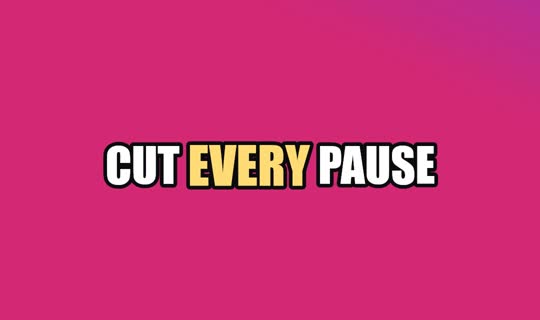
Heavy caps, live word in yellow
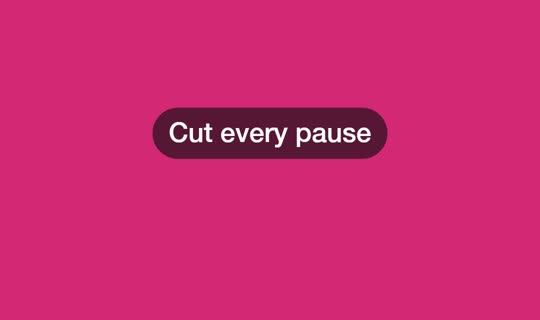
Quiet subtitle on a soft pill
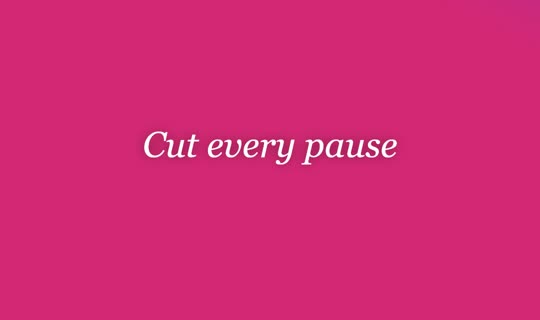
Serif italic, soft shadow

Live word in the gradient
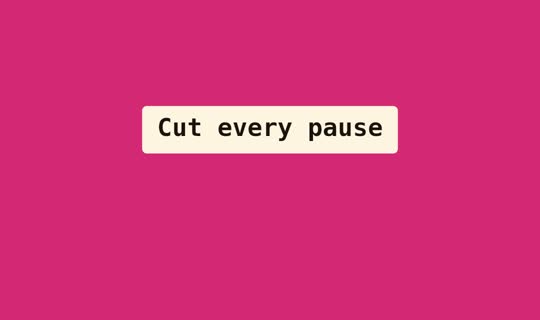
Mono type on a cream tag
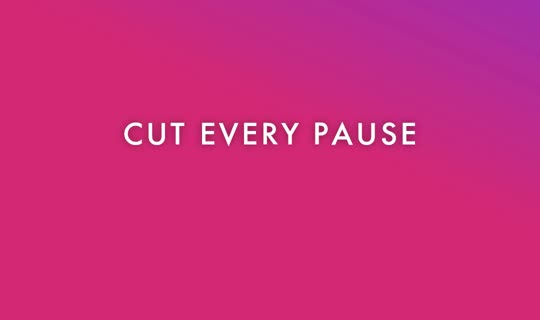
Spaced caps for songs
| Style | Use it for |
|---|---|
| Bold Pop | Talking reels, hooks, high energy |
| Clean Sub | Interviews, podcasts, anything calm |
| Editorial | Travel, lifestyle, voiceovers |
| Gradient Word | Tutorials and tips |
| Typewriter | Storytelling, quotes |
| Lyric | Music reels, edits with song lyrics |
Set your usual style once under Settings › Profiles › Caption style, and every tool will use it by default.
Hindi and Hinglish
With Roman Hinglish on (the default), Hindi speech is written in Roman letters the way people type it on Instagram, for example "kya baat hai" rather than Devanagari. English words stay in English. Turn it off to keep Devanagari.
Settings
| Setting | What it does |
|---|---|
| Typography | One of the six styles |
| Roman Hinglish | Converts Hindi script to Roman letters |
| Frame | Keep the source shape, or crop to 9:16, 1:1, 4:5 or 16:9 |
You also get a Captions (.srt) file. Import it into CapCut, Premiere Pro or YouTube to edit the text there.
Get the best result
- Speak clearly, close to the mic. Transcription accuracy depends mostly on audio quality.
- Keep music quieter than your voice while recording, or add music after captioning.
- Captions sit above the bottom fifth of the frame, away from Instagram's buttons. Keep faces and products out of that band when you shoot.