 Yatri Studio
Get started
Install Yatri Studio, connect a model and finish your first edit in about five minutes.
Yatri Studio runs on your Mac. Your clips never leave it. The only thing sent out is the text of your request, and only to the model you pick: your Claude plan, an Anthropic API key, or Ollama running on the same machine.
What you need
| Why | How to get it | |
|---|---|---|
| macOS with Homebrew | Installs the video tools | brew.sh |
| Node.js 22 or newer | Runs the app | brew install node |
| A model | Plans your edits and writes captions | Claude Code (your Claude plan), Ollama, or an API key |
Install
Open Terminal in the
yatri-studiofolder and install the app:npm installInstall the video tools and the speech model. This downloads ffmpeg, yt-dlp and whisper.cpp with Homebrew, plus a 466 MB speech model that understands English, Hindi and Hinglish.
npm run setupStart the studio:
npm run devOpen http://127.0.0.1:3000.
Connect a model
The fastest option is your Claude plan. Install Claude Code once and sign in:
npm i -g @anthropic-ai/claude-code
claude
That's it. Yatri Studio finds it on its own. If you'd rather keep everything offline, use Ollama instead. Models covers all three options.
Your first edit
We'll clean up three rough takes with long pauses in them.
- Drag the three clips onto the message box at the bottom. You can also click the + button. Thumbnails show up as they upload.
- Type
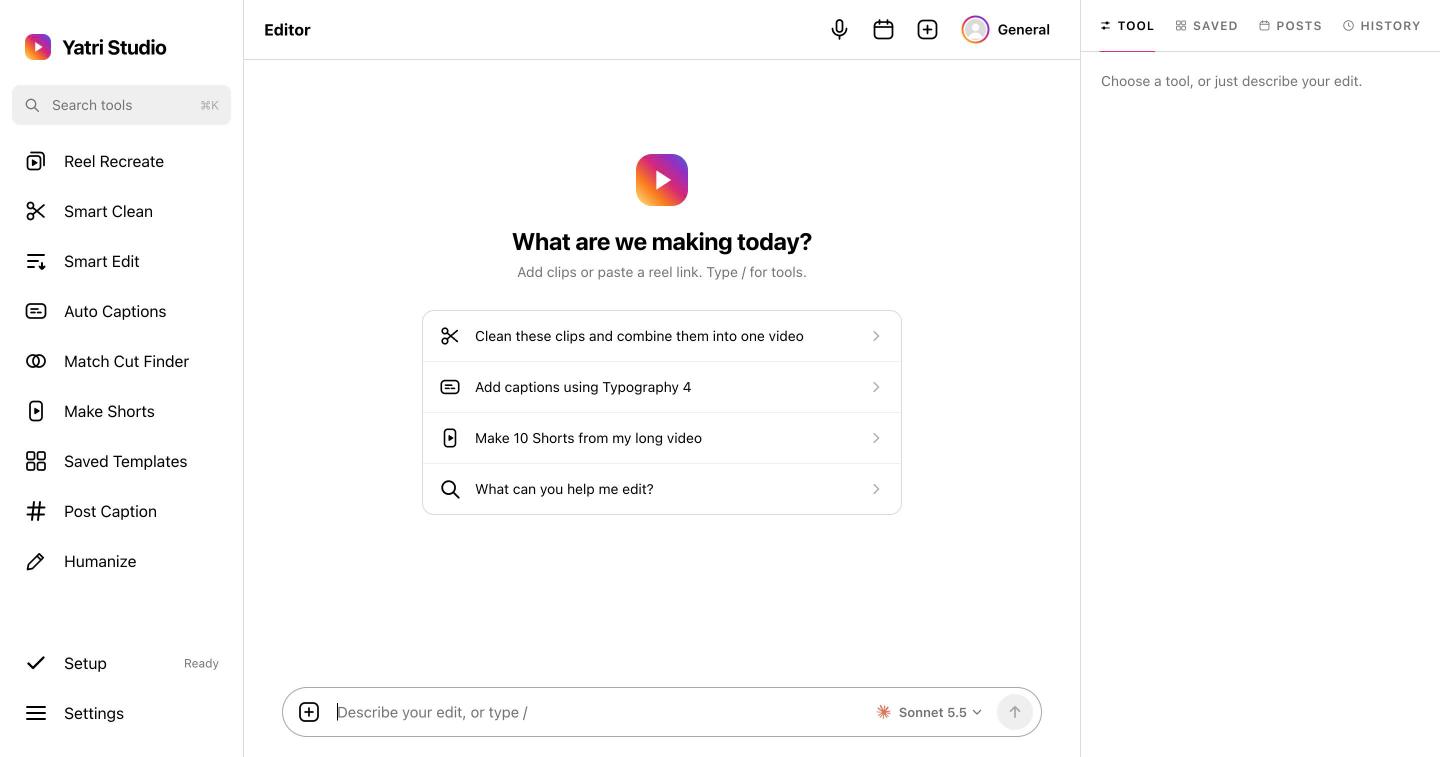
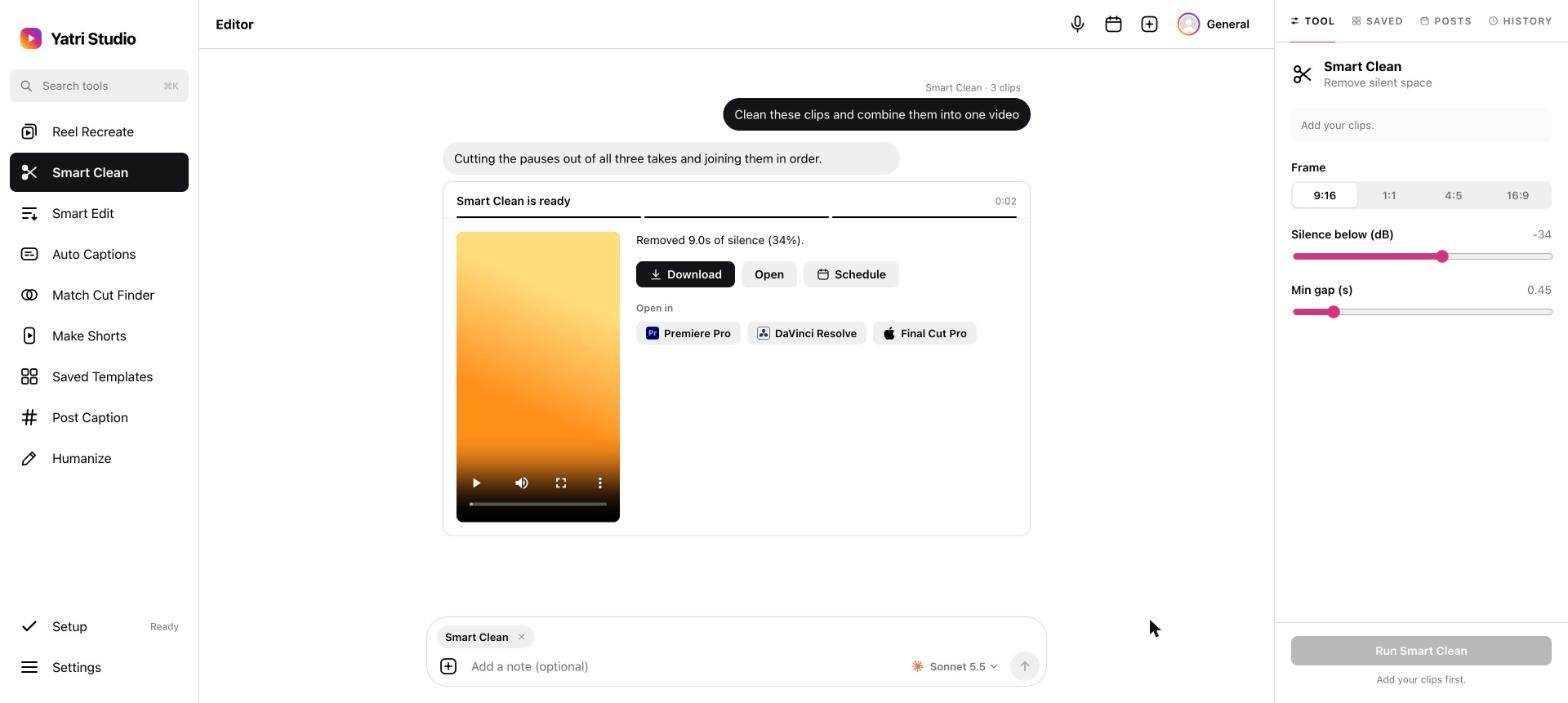
Clean these clips and combine them into one videoand press Enter. - The editor picks Smart Clean for you and shows each step as it runs.
- When it says Smart Clean is ready, press play. Click Download to save the video.
Where to go next
- The editor explains every part of the screen and the
/shortcuts. - Reel Recreate copies the cuts, beat and look of any reel.
- Pro tips covers how to shoot and edit for the best results.