 Yatri Studio
Scheduled posts and profiles
Plan when to post, keep captions ready, and switch between brand voices.
Plan a post
Yatri Studio doesn't post to Instagram for you. It keeps the video, caption and time together and reminds you.
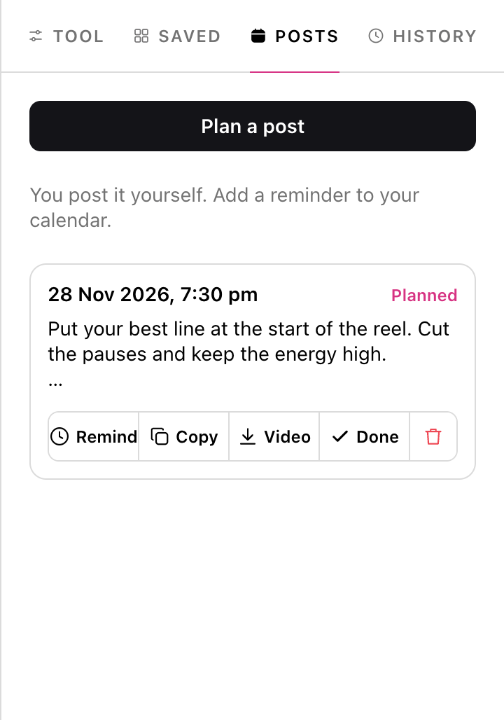
- On any finished edit, click Schedule. The video is attached for you.
- Pick a date and time and write or paste the caption.
- Click Save.
- Click Remind me to download a calendar reminder (
.ics). It opens in Apple Calendar, Google Calendar or Outlook and alerts you 10 minutes before. - When it's time, click Copy, open Instagram on your phone, paste the caption and post.
- Click Mark posted so you know it's done.
Posts that pass their time without being marked turn red and say Overdue.
Profiles
A profile is your brand kit: caption voice, sample captions, default caption style, caption font and profile photo. Make one for each account or client, and every tool starts with that client's look.
- Open Settings › Profiles.
- Click Add profile and give it a name.
- Add a photo, describe the voice, and paste two or three real captions.
- Pick the default caption style and caption font.
- Click Save, then Use on the profile you want active.
The active profile shows at the top right of the editor.